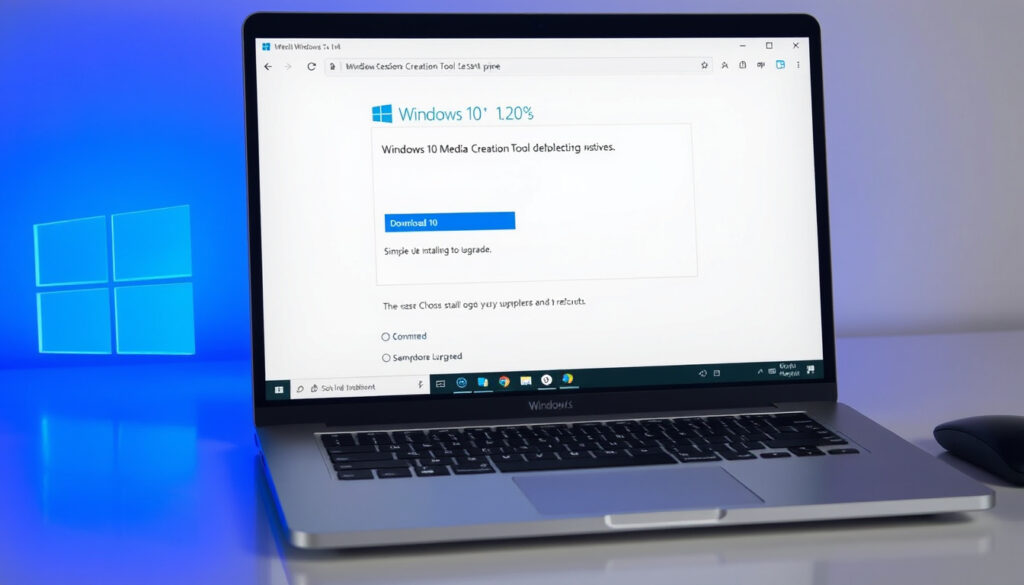
Windows 10 Media Creation Tool: Download & USB Guide
Time is running out to grab official Windows 10 installation media. Microsoft’s free Media Creation Tool lets you build a bootable USB drive or grab an ISO file directly—no sketchy third-party download sites required. With support ending on October 14, 2025, this is your window to download official media.
Official Download Site: microsoft.com/software-download/windows10 · Support End Date: October 14, 2025 · Minimum USB Size: 8 GB · Tool File Name: MediaCreationTool.exe
Quick snapshot
- Tool downloadable from Microsoft (Corsair Help)
- Creates bootable USB and ISO for free (Microsoft Support)
- Supports both Legacy BIOS and UEFI (TenForums)
- Tool availability after October 14, 2025 (Microsoft Support)
- Windows 12 release timeline and whether tool adapts (Microsoft Support)
- Tool still available now but no security updates post-2025 (Microsoft Support)
- Upgrade to Windows 11 remains a path for eligible hardware (Microsoft Support)
Five critical facts anchor everything you need to know about the Windows 10 Media Creation Tool.
| Field | Value |
|---|---|
| Primary Purpose | Create installation media for Windows 10 |
| Download URL | microsoft.com/software-download/windows10 |
| Support Guide URL | Microsoft Support guide |
| End of Support | October 14, 2025 |
| USB Requirement | 8 GB minimum |
| Architecture Support | 32-bit and 64-bit |
| Tool File Size | Less than 20 MB |
Where can I download the Windows Media Creation Tool?
The official download page lives at microsoft.com/software-download/windows10. Look for the “Create Windows 10 Installation Media” section and click “Download tool now.” The file you get is MediaCreationTool.exe—a standalone executable under 20 MB that requires no installation. You can run it on any PC running Windows 7, 8.1, or 10.
Official Microsoft download page
According to Microsoft Support (official documentation), the process is straightforward: visit the download site, scroll to the Windows 10 installation media section, and select Download Now. The tool walks you through the rest—no account creation or sign-in required.
System requirements
- PC with internet connection for downloading installation files
- At least 8 GB USB flash drive (or DVD for older hardware)
- Windows 7, 8.1, or 10 to run the tool
- Administrator rights to create bootable media
Verification steps
- Confirm you’re on the genuine Microsoft domain before downloading
- Check the file name matches MediaCreationTool.exe or MediaCreationTool22H2.exe
- Right-click the file → Properties → Digital Signatures to verify Microsoft Corporation
The implication: skipping verification opens you up to counterfeit tools that carriers malware—a real risk given how popular this download is around support end dates.
How do I make a bootable USB for Windows 10?
Once you have MediaCreationTool.exe on your PC, the USB creation process takes 10–20 minutes depending on your internet speed and USB drive performance. The tool handles everything: downloading the Windows image, formatting your USB, and making it bootable for both Legacy BIOS and UEFI systems.
Prepare USB drive
- Use a blank USB drive with at least 8 GB capacity—the tool will format it completely
- Back up any files you want to keep before proceeding
- Insert the USB into a working port (preferably USB 3.0 for speed)
Run the tool
Right-click MediaCreationTool.exe and select “Run as administrator.” A UAC prompt will appear—click Yes to grant access. Accept the Microsoft license terms that pop up, then choose “Create installation media for another PC.”
Select options
- Choose your language, Windows edition (Home or Pro), and architecture (32-bit or 64-bit)
- Select the USB flash drive option—your drive should appear in the list
- Click Next and wait while the tool downloads and writes Windows files
What this means: the tool downloads the ISO first, then reformats and writes bootable content—this is why the process takes longer than simply copying files. A Kingston guide confirms this is the official method recommended by hardware vendors.
How do I install Windows 10 from a bootable USB?
With your bootable USB ready, the next step is telling your PC to boot from it instead of your regular hard drive. This requires accessing your BIOS or UEFI settings.
Boot from USB
Restart your PC and watch for the initial screen showing the manufacturer logo—that’s your cue to press the boot menu key (typically F12, F8, Esc, or Del depending on your motherboard). Select your USB drive from the boot menu. If that doesn’t work, enter your BIOS/UEFI settings and change the boot order to prioritize USB.
Installation process
Once your PC boots from USB, you’ll see the Windows setup screen. Choose your language, time format, and keyboard input. Click “Install Now.” When prompted, you can choose between an upgrade (keeping files and apps) or a custom/clean install (formatting the drive). A clean install is recommended for new drives or when resolving system issues.
Post-install setup
- Enter your Windows 10 product key when prompted (or skip for now and activate later)
- Create a user account and set preferences
- Connect to Wi-Fi and sign into Microsoft Account for full features
- Run Windows Update to get any patches released before support end
The catch: if you’re installing on a new drive or doing a clean install on an existing PC, you’ll need a valid product key. Microsoft offers digital activation for legitimate Windows 10 purchases linked to your Microsoft account.
Can you still create a Windows 10 bootable USB?
Yes—the Media Creation Tool remains fully functional. Microsoft has not pulled the download, and the tool produces valid bootable media. However, with support ending October 14, 2025, Windows 10 will no longer receive security updates after that date. You can still install and use it, but running an unsupported operating system carries security risks.
Availability after support end
According to Microsoft’s official documentation, the tool remains available but Windows 10 won’t receive updates post-2025. Whether Microsoft removes the download page entirely or leaves it accessible is not confirmed. What is certain: the longer you wait, the more you risk encountering unpatched vulnerabilities.
Tool functionality
The tool continues to work as designed—it creates bootable USB and ISO files. As of May 2023, Media Creation Tool version 10.0.19045.2006 produced USB media for Windows 10 version 22H2 build 19045.2965. The core functionality hasn’t changed for users creating installation media.
Alternatives
- Rufus: A third-party tool that writes ISO files to USB—requires you to download the Windows 10 ISO separately first
- Dell OS Recovery Tool: For Dell hardware owners, this downloads OEM-specific Windows images rather than retail versions
- Manual ISO download: Microsoft’s tool can download the ISO file directly without creating USB, then you use a separate tool to write it
The trade-off: the Media Creation Tool is the only official, one-stop solution that handles both download and media creation without requiring a separate ISO or third-party software.
Is there a free version of Windows 10 ISO?
Microsoft offers the Windows 10 ISO file for free download—no purchase required. The Media Creation Tool itself is free, and the ISO files it downloads are the same retail images available directly from Microsoft. You don’t need a product key to download the ISO, though you’ll need one to activate Windows after installation.
Official ISO download
Within the Media Creation Tool, after selecting “Create installation media for another PC,” choose the ISO file option instead of USB flash drive. The tool will download the complete Windows 10 ISO to your specified location. This file can be burned to DVD or written to USB using tools like Rufus.
Using media tool for ISO
- Run MediaCreationTool.exe as administrator
- Accept license terms
- Select “Create installation media for another PC”
- Uncheck “Use the recommended options for this PC”
- Choose your language, edition, and architecture
- Select ISO file option
- Save the ISO to your preferred location
Legitimacy
Any ISO downloaded through Microsoft’s official channels is a legitimate retail copy. The Media Creation Tool only fetches files from Microsoft’s servers, so you’re getting the exact same installation media Microsoft distributes to consumers and businesses alike. TenForums notes that Microsoft handles both 32-bit and 64-bit Windows 10 creation through this tool with no regional variations—the process is global. You can download the official Windows 10 media creation tool from Windows 11 DNSキャッシュをクリア.
The Windows 10 Media Creation Tool remains the only official path to free, legitimate installation media. With support ending in 2025, the window for grabbing this without security concerns is closing fast.
How to download and use the Media Creation Tool
- Visit microsoft.com/software-download/windows10 in your browser
- Click “Download tool now” under the Create Windows 10 Installation Media section
- Save MediaCreationTool.exe to your desktop or downloads folder
- Right-click the file and select “Run as administrator”
- Accept the Microsoft Software License Terms when prompted
- Choose “Create installation media for another PC” and click Next
- Select language, edition (Home/Pro), and architecture (32-bit/64-bit)—uncheck recommended options to customize
- For USB: insert an 8 GB+ drive, select it from the list, and click Next to begin creation. For ISO: select save location, wait for download to complete, then burn or write to media
The entire process takes 10–20 minutes once you start. The tool downloads Windows files fresh from Microsoft servers, so you’re guaranteed the latest available version. Running as administrator prevents UAC prompts mid-process and ensures proper formatting.
Clarifying what’s confirmed and what isn’t
Here’s what sources confirm with high confidence, and what remains uncertain.
Confirmed facts
- Tool downloadable from Microsoft’s official site
- Creates valid bootable USB and ISO files
- Free official media—no cost from Microsoft
- Requires 8 GB minimum USB drive
- Supports Legacy BIOS and UEFI boot modes
- Handles both 32-bit and 64-bit architectures
- Process unchanged globally—no regional variations
What’s still unclear
- Whether Microsoft removes the download after October 14, 2025
- Exact current version of the tool as of 2026
- Windows 12 release timeline and whether the tool adapts
- Specific regional download URL variations (en-in vs en-us behavior)
- Official Microsoft policy on tool usage post-EOL
Support for Windows 10 has ended on October 14, 2025.
— Microsoft Support (official documentation)
This is the official method so we are not using any third-party tools.
— Tech guide documentation via Corsair Help
Related reading: Windows 10 Media Creation Tool
youtube.com, easeus.com, youtube.com, youtube.com, youtube.com, studocu.com
The Windows 10 Media Creation Tool, detailed in this complete download and usage guide, enables seamless creation of bootable USB drives or ISO files before support ends in 2025.
Frequently asked questions
What is the Windows 10 Media Creation Tool?
The Media Creation Tool is a free official utility from Microsoft that downloads Windows 10 installation files and writes them to a USB drive or saves them as an ISO file. It’s the direct method Microsoft provides for creating bootable Windows installation media without using third-party tools.
Do I need a product key to use the tool?
You don’t need a product key to download the tool or create installation media. You will need a valid Windows 10 product key to activate the operating system after installation, unless you’re upgrading from a previously activated Windows 10 installation.
Can the tool upgrade my current Windows 10?
Yes—the tool offers an “Upgrade this PC now” option that preserves your files, apps, and settings during installation. This is useful if you want to reinstall Windows 10 without losing data, though a clean install is often cleaner for resolving performance or stability issues.
What if my USB is not detected?
Try inserting the USB into a different port, preferably USB 2.0 or 3.0 on the rear ports of your PC rather than front panel or hub ports. Ensure the USB is formatted as FAT32 (the tool handles this) and try running MediaCreationTool.exe as administrator. If the drive still doesn’t appear, try a different USB stick—some drives with non-standard controllers may not be recognized.
Is the tool safe to download from Microsoft?
Yes—downloaded from microsoft.com/software-download/windows10, the Media Creation Tool is safe. Always verify you’re on the official Microsoft domain before downloading, check the digital signature properties of the downloaded file, and never run the tool if your antivirus software flags it.
Can I use the tool on Windows 11?
No—the Windows 10 Media Creation Tool specifically downloads Windows 10 installation files. For Windows 11, Microsoft provides a separate Media Creation Tool. However, the Windows 10 tool can create installation media for Windows 10 only.
How to get Windows 10 ISO without USB?
Within the Media Creation Tool, instead of selecting “USB flash drive,” choose the “ISO file” option. The tool will download the complete Windows 10 ISO to your specified location. You can then burn this ISO to a DVD or use a tool like Rufus to write it to USB later.
More related posts
 What Is Normal Blood Pressure by Age? Charts & Guidelines
 Sir Jim Ratcliffe: Net Worth, Ineos Debt, Man Utd Stake
 Dark Side of the Moon – History, Facts and Myths
 Multan Sultans vs Lahore Qalandars: LQ Wins by 20 Runs
 Gujarat Titans vs Rajasthan Royals Match Scorecard – IPL 2024 Match 24 Result
 Cast of Flowers in the Attic The Origin – Actors and Their Roles
 Willow Pastures Country Park: Luxury Lodges, Prices & Reviews
 Jennifer Love Hewitt: Biography, Kids, Net Worth, Career
